Turn a photo into a color by number page
A holiday view, a favorite plant or a familiar face can become your next coloring page. Calma Color turns a photo into numbered fields on your phone, with a preview so you can see what works before saving.
Try the coloring demo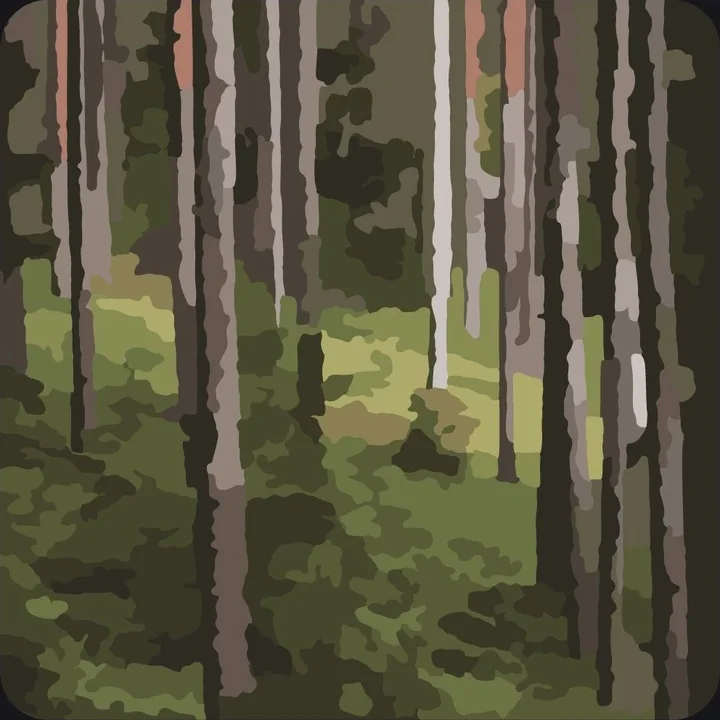
Choose a photo with a clear subject
Start with one subject that stands out from its background. A bright flower against a wall or a landscape with distinct areas of sky and land usually translates more clearly than a crowded room. Crop away anything that competes for attention.
The result is a simplified coloring page, rather than a photographic copy. Tiny textures and subtle shadows become larger areas of color. If a face looks unclear in the preview, try a closer crop or a different level of detail.
Crop, compare and save
Pick an image from your photos or take a new one, then adjust the square crop. Choose Calm, Balanced or Deep and compare the preview with the original. Calm keeps the shapes simpler; Deep leaves more small fields to work through.
- Keep the main subject inside the square crop.
- Compare more than one detail level before saving.
- Choose the version you would enjoy coloring, even if it has less detail.
One forest photo, three different coloring pages
These are actual results from Calma Color, using the same photo and square crop. Compare the shapes as well as the field count: more detail gives you more small areas, rather than automatically making a better page. The counts below belong to this example; your photo will produce different results.
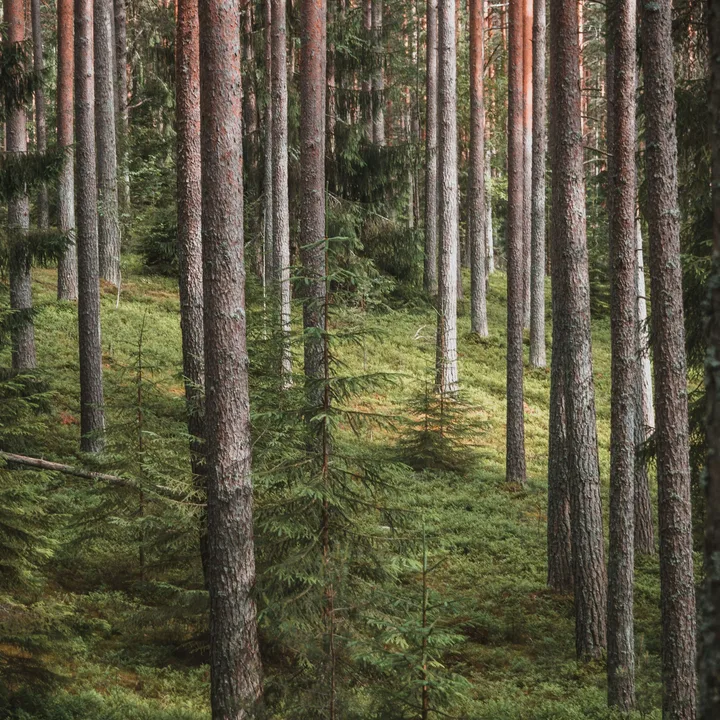
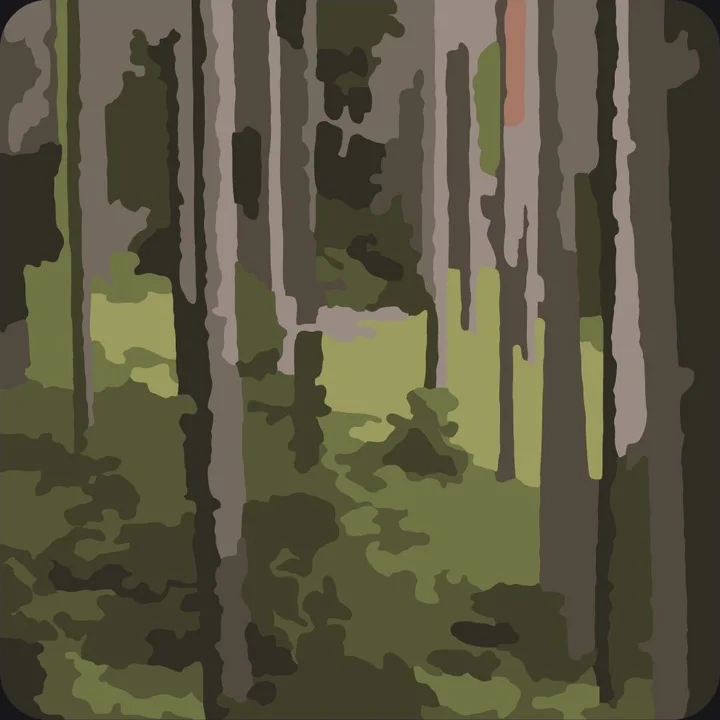
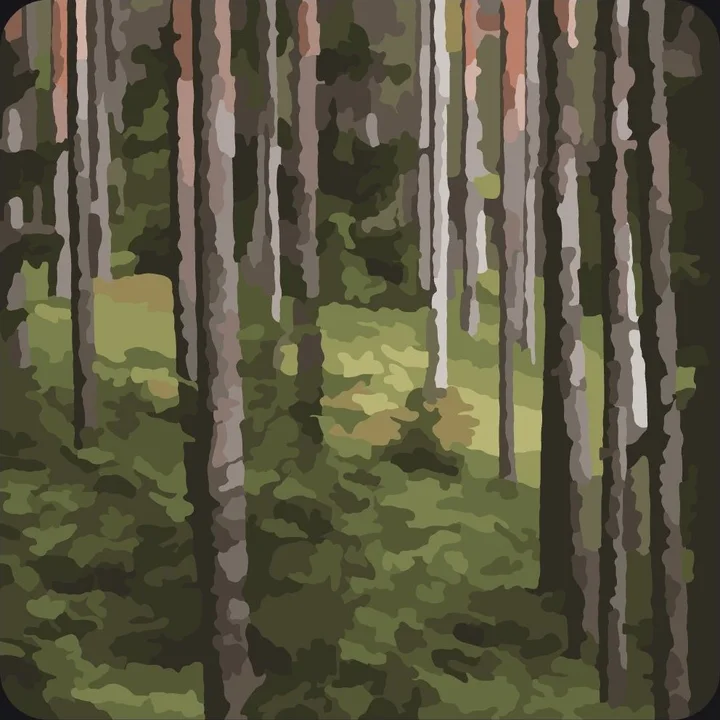
A real result of the app’s photo import, at each level of detail.
What is free, and where does the photo go?
Your first saved photo page is free. Optional Premium unlocks unlimited photo pages through a one-time purchase. You can look at the preview before deciding to save your import.
Processing happens on your device; Calma Color does not upload the photo to a server. The app keeps the coloring page it creates, not a separate copy of the original. Your device's system backup may include saved app data if you have enabled it.
Your photo, your coloring page
A few useful answers
Is this a printable paint by number kit?
It creates a digital page to color inside Calma Color. Sharing your finished work as an image or video is supported; this is not a service for ordering a printed canvas and paints.
Can I use a photo of my cat?
Yes. Try a photo with a clear outline and a simple background, and check the preview carefully. Fur markings may be simplified into larger areas.